
Claude
Anthropic's safety-first AI with massive context
Claude by Anthropic excels at long-context analysis, nuanced writing, and agentic tasks. Its 200K token context window makes it ideal for analyzing large documents, codebases, and complex research.
Editor rating is our overall editorial judgment of the tool, out of 5. It is not a test score and not a user-review average. Ratings have not been re-scored since the tool was listed here. The reasons are in Best for and Pros & cons below.
No coding needed. You can try it in the browser.
Claude is Anthropic's AI assistant, known for careful, natural writing and steady work over long documents. Hand it a 100-page contract, a research paper, or a messy report and it tends to keep track of the details and answer in a measured, readable tone. Artifacts let it build documents, small apps, and visualizations in a side panel you can edit; Projects let you keep files and instructions attached to an ongoing piece of work. For developers, Claude Code and MCP make it a strong choice for connecting the assistant to real tools and codebases.
It's best when quality of writing and judgment matter more than speed or breadth of features. The catch is usage caps: on both free and paid plans, heavy sessions can hit limits faster than you'd like, forcing a break.
Free tier with usage limits; the paid plan is about $20/mo, with higher tiers for heavier use. Check the pricing page for current details.
Best for
Pros & cons
✓ Pros
✗ What this won't do
Use cases
Analyzing entire codebases
Writing research reports
Summarizing legal contracts
Multi-step agentic workflows
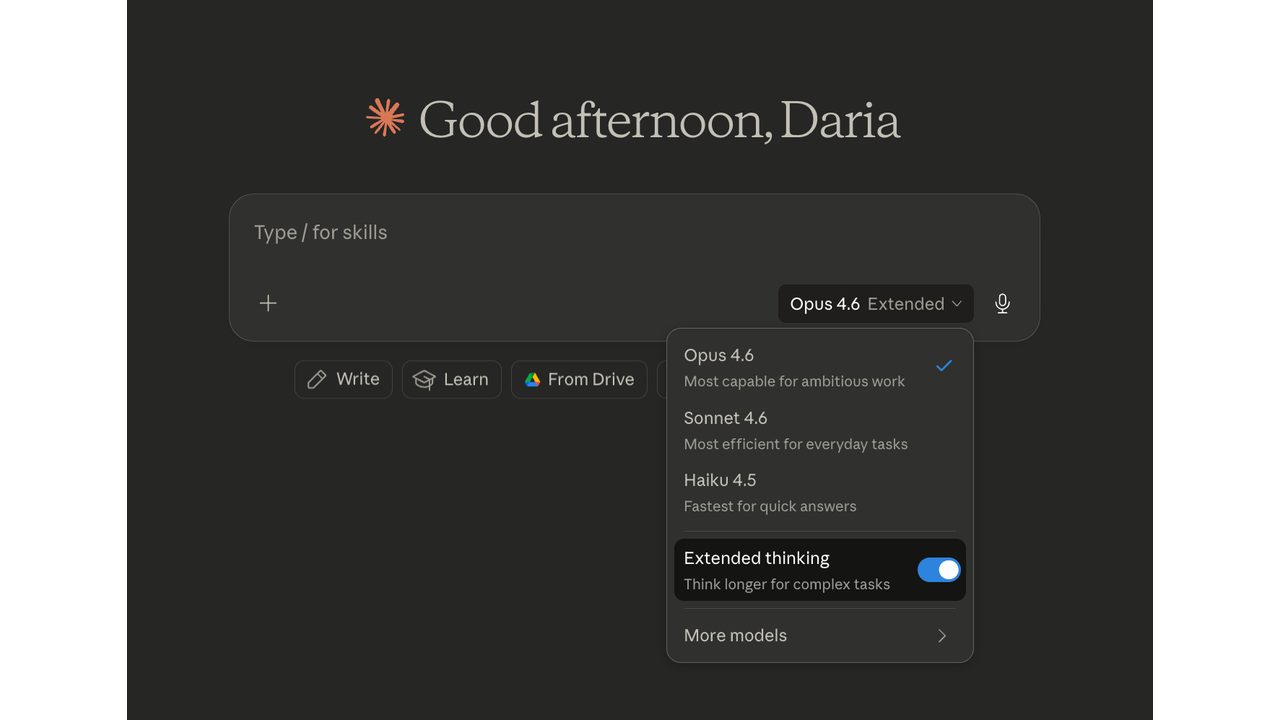
Open Claude
You will see a greeting and an empty message box after signing in at claude.ai. The default model is usually fine for most tasks.
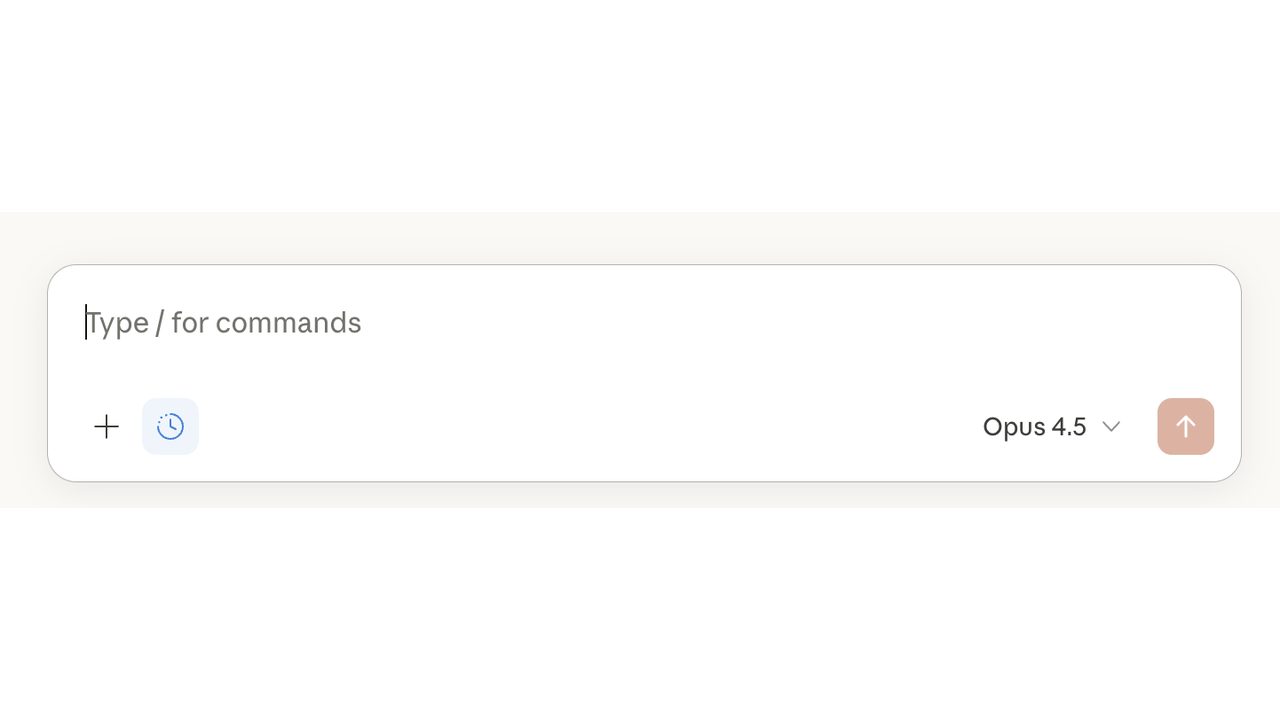
Type Message
Type your question or request in the message box and click the send button to start the conversation.
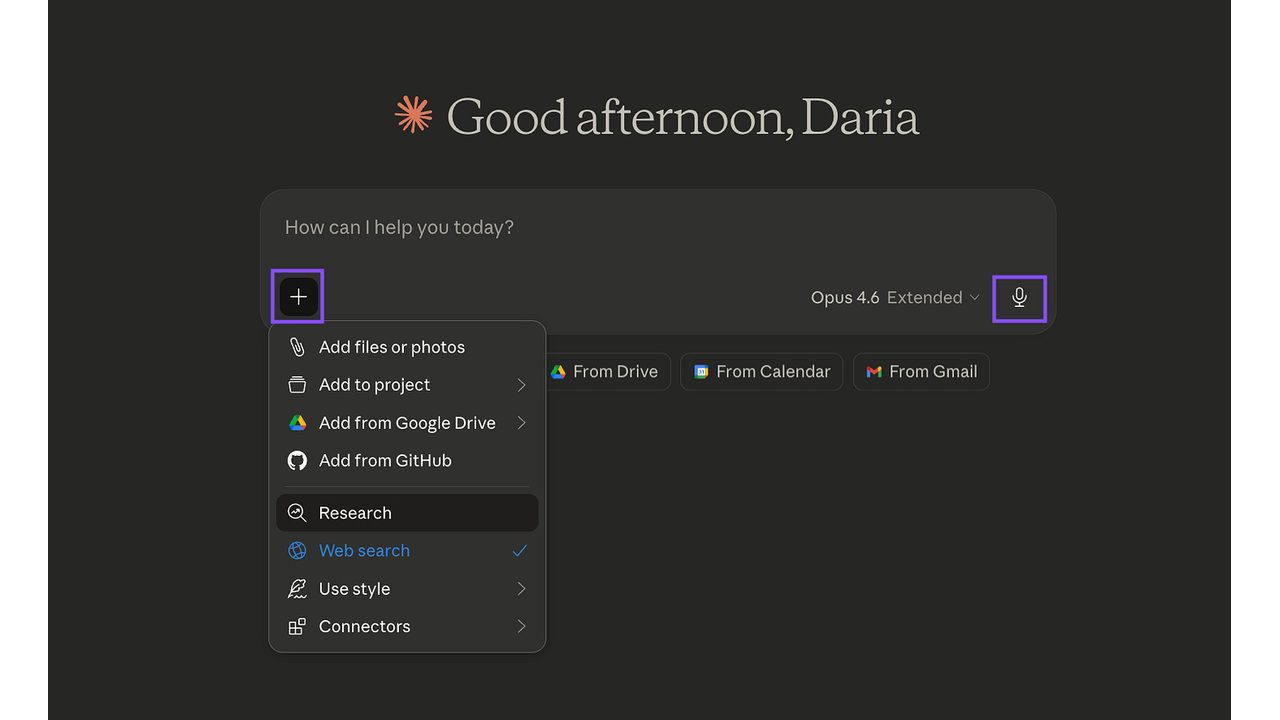
Add Context
Click the plus button to open a menu, then attach a file or add context to your conversation. You can then ask Claude to revise or go deeper.
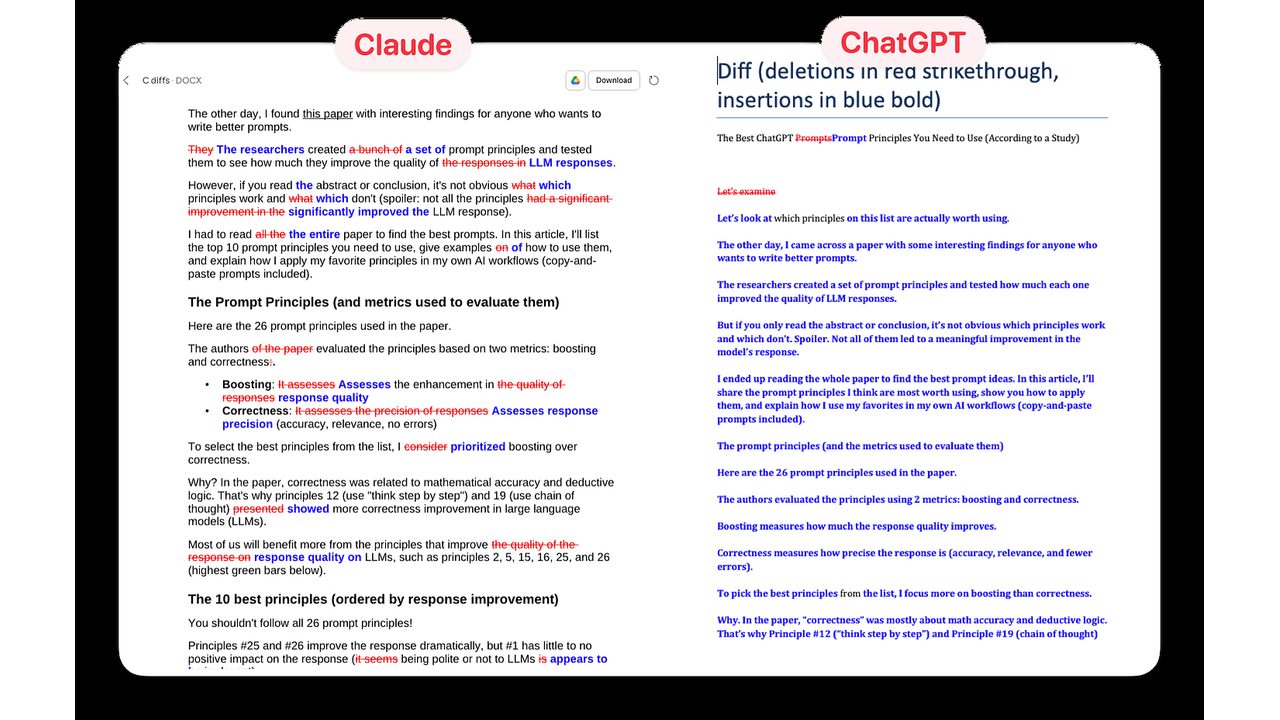
Review Result
Review the document Claude has produced and click the Download button to save it, or copy it out to use in your work.
Good fit, bad fit
Great for
- Reading and questioning long documents (contracts, reports, books) with careful answers
- Writing that needs a human, non-robotic tone: essays, letters, sensitive emails
- Building small interactive tools and documents with Artifacts, no coding required
- Ongoing work with Projects: keep your files and context attached across many chats
Skip if
- You want built-in image or video generation. Claude doesn't make pictures
- You need tight integration with Gmail, Docs, and Sheets. Gemini lives there natively
- You chat heavily all day. Usage limits may interrupt you more than alternatives
Compare alternatives
| Tool | Category | Editor rating | Pricing |
|---|---|---|---|
| Claude (current) | LLM / Assistant | 4.8 | Free / $20 mo |
| ChatGPT | LLM / Assistant | 4.8 | Free / $20 mo |
| Google Gemini | LLM / Assistant | 4.6 | Free / $20 mo |
| Perplexity AI | Research / Search | 4.7 | Free / $20 mo |