4 min watch
Gemini tutorial for beginners: research, images and music in three workflows
0 comments
The rundown
Turn one question into a structured research report, then take the idea into an image and a music track, all in the Gemini workspace.
What you'll learn
- Give Deep Research an objective, not a topic, and read the report from the top
- Write image prompts in layers, including what to leave out
- Describe the moment a music track belongs to, then listen and refine
Topics
Step 1 / 6
Pick the tool for the job
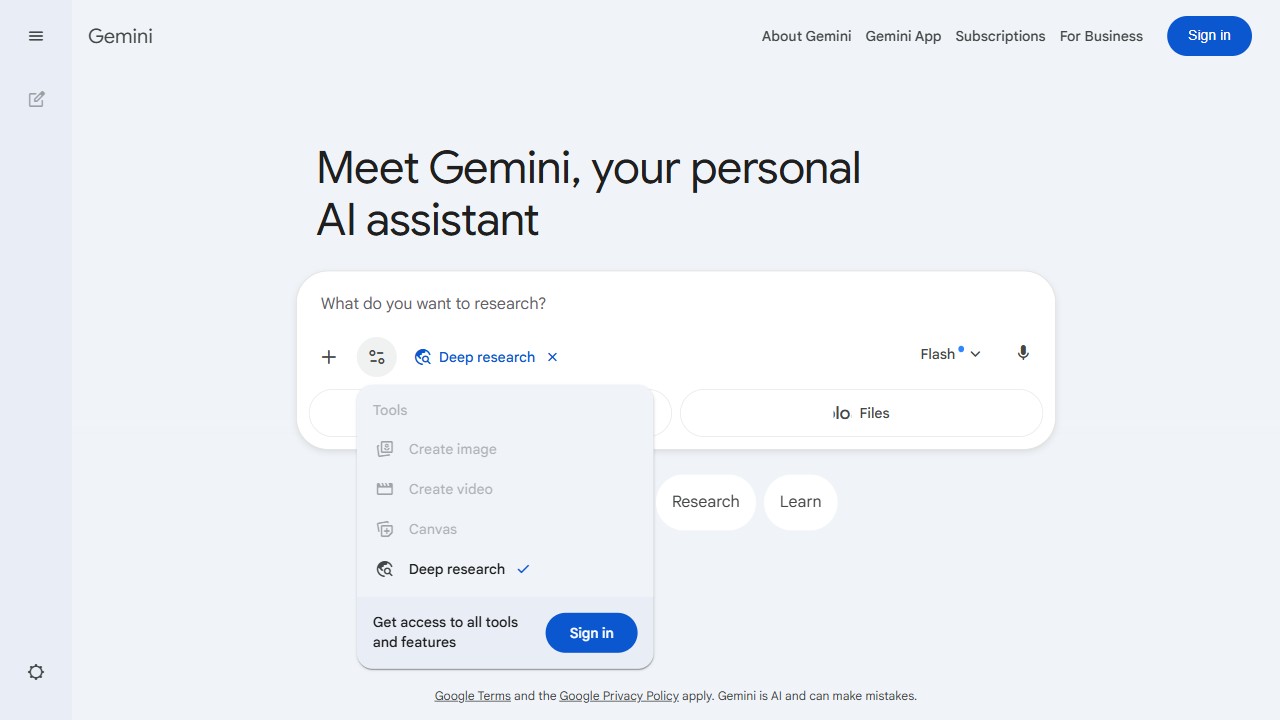
Everything starts in the main Gemini workspace. A quick question can stay in normal chat. For anything deeper, choose the tool built for it: Deep Research, image creation or Create Music.
Step 2 / 6
Give research an objective
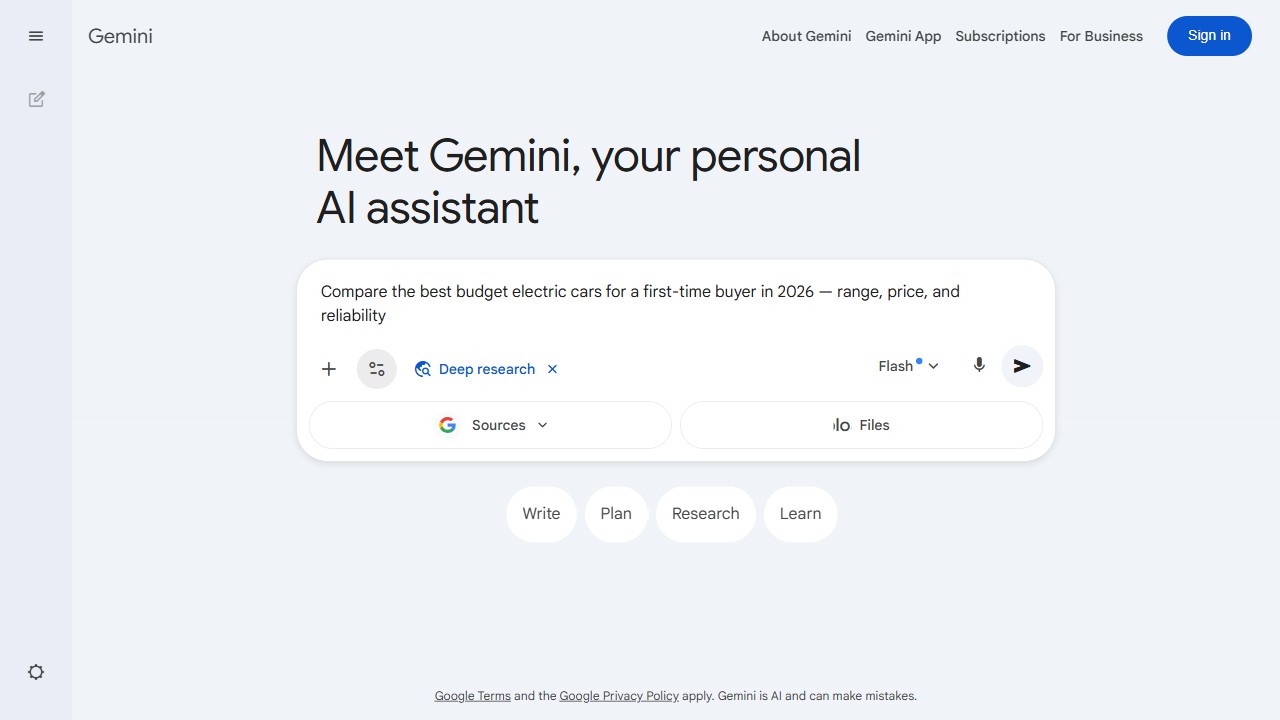
Do not hand Gemini a topic. Say what you are trying to understand, what should be compared, and what the result must help you decide. Then start the research and let it read across many sources.
Step 3 / 6
Read the report from the top
Start with the main findings, then the supporting explanation, the comparisons and the sources. Treat it as a starting point: ask follow-up questions, simplify a section, or turn it into an outline.

Step 4 / 6
Build the image prompt in layers
Open image creation and pick a visual style. Describe who or what is in the scene, where it happens, the lighting, pose, emotion and composition. Say what you do not want as well.
Step 5 / 6
Describe the music as a moment
Open Create Music. Start with the feeling, then genre, instruments, vocals and character. 'An emotional moment alone in the woods, looking out of a window' gives the model more than 'cinematic music'.
Step 6 / 6
Listen, judge, refine
Play the track and check whether the emotion arrives too soon, the rhythm distracts, or it fits the visual. Treat the first generation as a draft. Keep the creative decisions yours.

Moirangthem Margareth Devi
Founder, AI Agents Daily
Founder of AI Agents Daily. She tests AI tools and teaches non-technical people how to put them to work.


Comments
No comments yet. Be the first.